
You are building a web that has a text editor for user to input. You can use the textarea element to create a text editor. But it is boring, you want the text editor also has the line numbers in the left just likes a code editor.
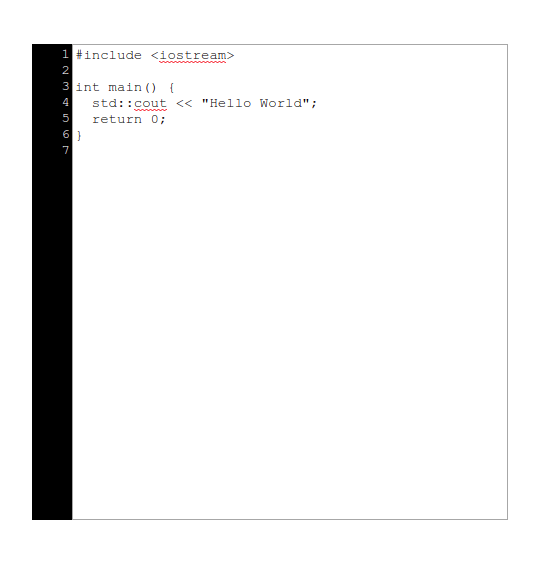
Today, I will show you how to make an above text editor.
HTML Part
First you need a big div, this div contains our editor. Let’s set its id to text-editor.
<div id="code-editor"></div>
Next we create two other elements inside the big div, one is the div element showing the line numbers, the other is the textarea element for user to input. We set their id properties to numbers and editor. Inside the numbers, we create one small div with inner text is 1 for initializing.
<div id="text-editor">
  <div id="numbers">
    <div>1</div>
  </div>
  <textarea id="editor"></textarea>
</div>
That’s all for HTML. Now we will make it beautiful.
CSS Part
We have three elements need to beautify: text-editor, numbers and editor.
First we put the text-editor to center (not necessary, you can skip this).
#text-editor {
  position: absolute;
  height: 50vh;
  width: 50vh;
  left: 50%;
  top: 50%;
  transform: translate(-50%, -50%);
  background: black;
}
We also set the background color of it. Next, there are two child elements so we use grid to align them in the parent.
#text-editor {
  ...
  display: grid;
  grid-template-columns: 40px auto;
}
The width of first element is 40px, the width of second element is the width of the parent minus 40px.
We don’t want the textarea to be resizable.
#editor {
  resize: none;
}
The numbers will hide the overflow small div elements and align the text to the right. We also set the its text color.
#numbers {
  overflow: hidden;
  color: white;
  text-align: right;
}
By default, the textarea has the padding property set to 2px so we need to set the padding property of the numbers to 2px if we don’t want to have the uneven position of them.
#numbers {
  ...
  padding: 2px;
}
Finally, the editor and the numbers must have the same font-size and font-family for perfect looking.
#editor {
  ...
  font-size: 14px;
  font-family: 'Courier New', Courier, monospace;
}

#numbers {
  ...
  font-size: 14px;
  font-family: 'Courier New', Courier, monospace;
}
Now, our editor will look like this:
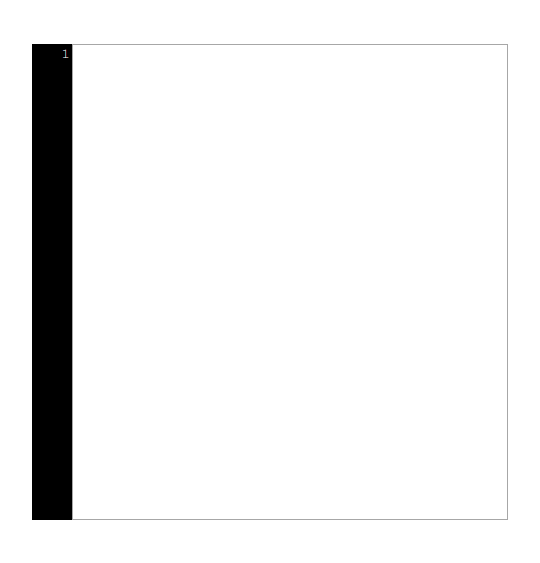
Bravo, now we move to the Javascript.
Javascript Part
Okay, if you want the numbers to increase every time you input a new line, you must use the Javascript (it’s magic part).
First of all, type this:
document.addEventListener("DOMContentLoaded", () => {
  //Code goes here ...
});
This tells browser to run the inside code only when the document is completely loaded. Now let’s declare two variables referencing to two elements: editor and numbers (or you can skip this and after that type a long code line).
const numbers = document.getElementById("numbers");
const editor = document.getElementById("editor");
Next, we need to update the numbers if new lines are added or existing lines are deleted. We create a function to count the number of lines of the text. Type this outside the addEventListener.
const countLineNum = str => str.split(/\r\n|\r|\n/).length;
Back inside the addEventListener, we check the value of the textarea and update the numbers.
editor.oninput = () => {
  const n = countLineNum(editor.value);
  let nums = ``;
  for (let i = 1; i <= n; i++) {
    nums += `<div>${i}</div>`
  }

  numbers.innerHTML = nums;
};
oninput will trigger the callback every time you type in the textarea. We count the lines and update the small div elements of the numbers. Now the numbers can increase if the new lines are added.
There is a problem, if the textarea scrolls, the numbers doesn’t scrolls. To fix this, add the following code.
editor.onscroll = () => {
  numbers.scrollTop = editor.scrollTop;
}
Every time the textarea scrolls, the scroll position of the numbers will be updated too.
Conclusion
This is how to create a text editor with line numbers. Thanks for watching.
 Code With Tri
Bình luận về bài viết này